The desktop app
The desktop app shows, at a glance, what needs you, which session runs on which account, and what every account has left. It lives in the menu bar, so the numbers are one click away while you work.
It is a window onto the same CLI: everything it does, it does through
agent-switch commands, so the terminal and the app always agree.
Start it
Section titled “Start it”agent-switchWith no command (or with agent-switch gui), Agent Switch starts the desktop
app. There is no installer: on first use it downloads the app that matches
your platform from the project’s GitHub release, keeps it under
~/.agent-switch/gui/<version>/, and runs it.
| Platform | What is downloaded |
|---|---|
| macOS | the app bundle (.app.tar.gz) |
| Linux x64 | an .AppImage |
| Windows x64 | a portable .exe (*_x64-portable.exe) |
- If the newest release is still being built, it takes the newest release that
already has the app, so
agent-switchkeeps working right after a release. - With no network, it starts the newest copy it already downloaded.
- If the app is already running, a second one is not started.
Other platforms (for example Linux on ARM) have no prebuilt app; the CLI works there as usual.
Prefer an installer?
Section titled “Prefer an installer?”Every GitHub release
also carries installers: .dmg (macOS), .msi and -setup.exe (Windows),
.deb and .rpm (Linux). They are not code-signed yet, so the first launch
needs one extra step:
Open System Settings › Privacy & Security, find the message about
agent-switch, and click Open Anyway. On macOS 14 and earlier you can
also right-click the app in Finder and choose Open. Or remove the
quarantine flag in a terminal:
xattr -dr com.apple.quarantine /Applications/agent-switch.appSmartScreen says “Windows protected your PC.” Click More info › Run anyway.
No extra step for .deb and .rpm. A downloaded .AppImage needs to be
made executable first: chmod +x agent-switch_*.AppImage.
The app that agent-switch downloads itself needs none of this.
The window
Section titled “The window”The top bar has four places on the left (Overview, Sessions, Accounts, Tools) and, on the right, search, Start session, Health, Activity, Notifications and Settings.
| Shortcut (Ctrl on Linux and Windows) | Does |
|---|---|
| ⌘K | Search sessions, accounts, projects and pages |
| ⌘N | Start a session |
| ⌘, | Open Settings |
Overview
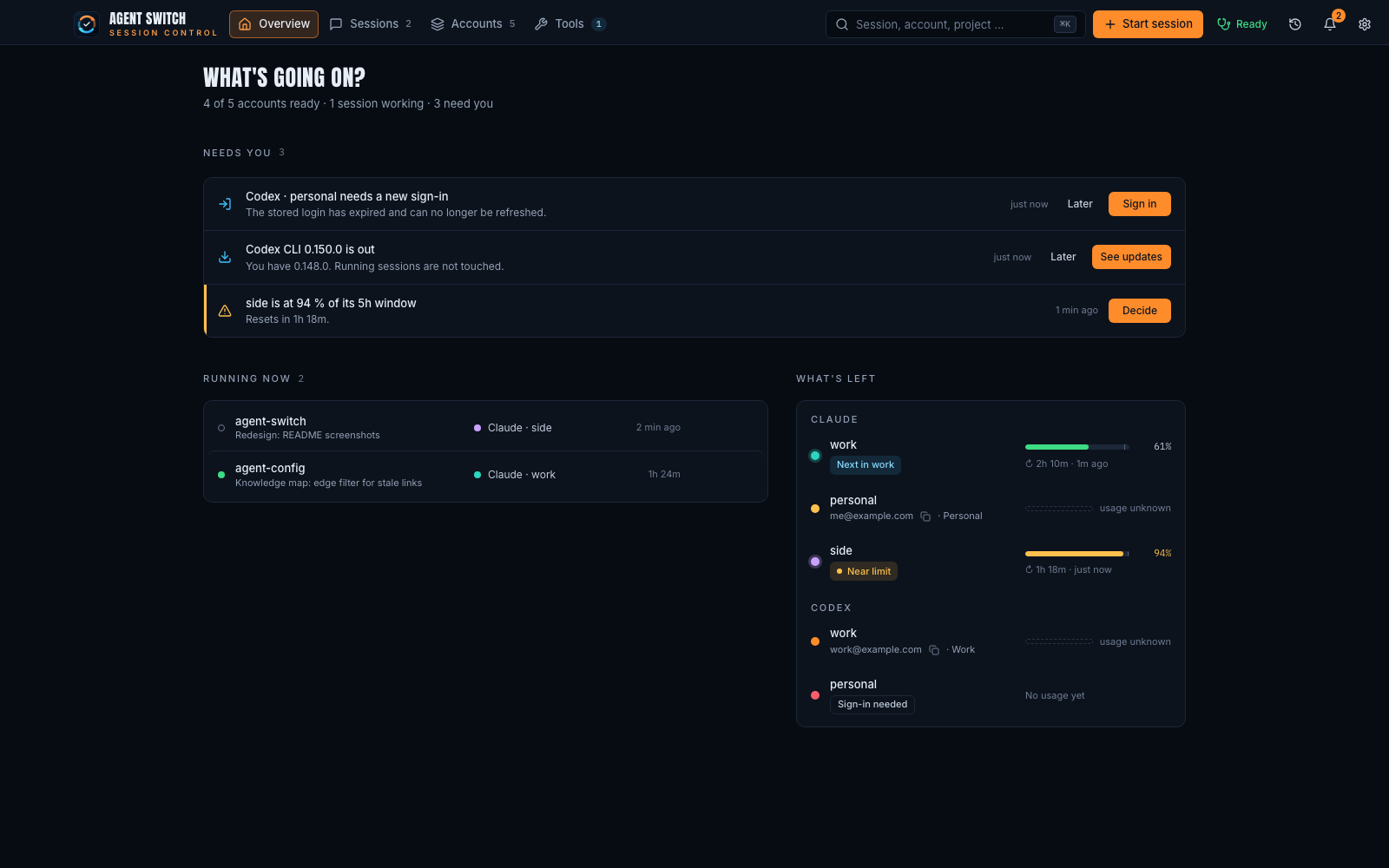
Section titled “Overview”“What’s going on?” in three parts:
- Needs you: accounts near their limit, sign-ins that expired, updates. Each item has the button that resolves it.
- Running now: live sessions and the account each one runs on.
- What’s left: every account’s usage, grouped by tool, with the time until its reset and how old the reading is.
Sessions
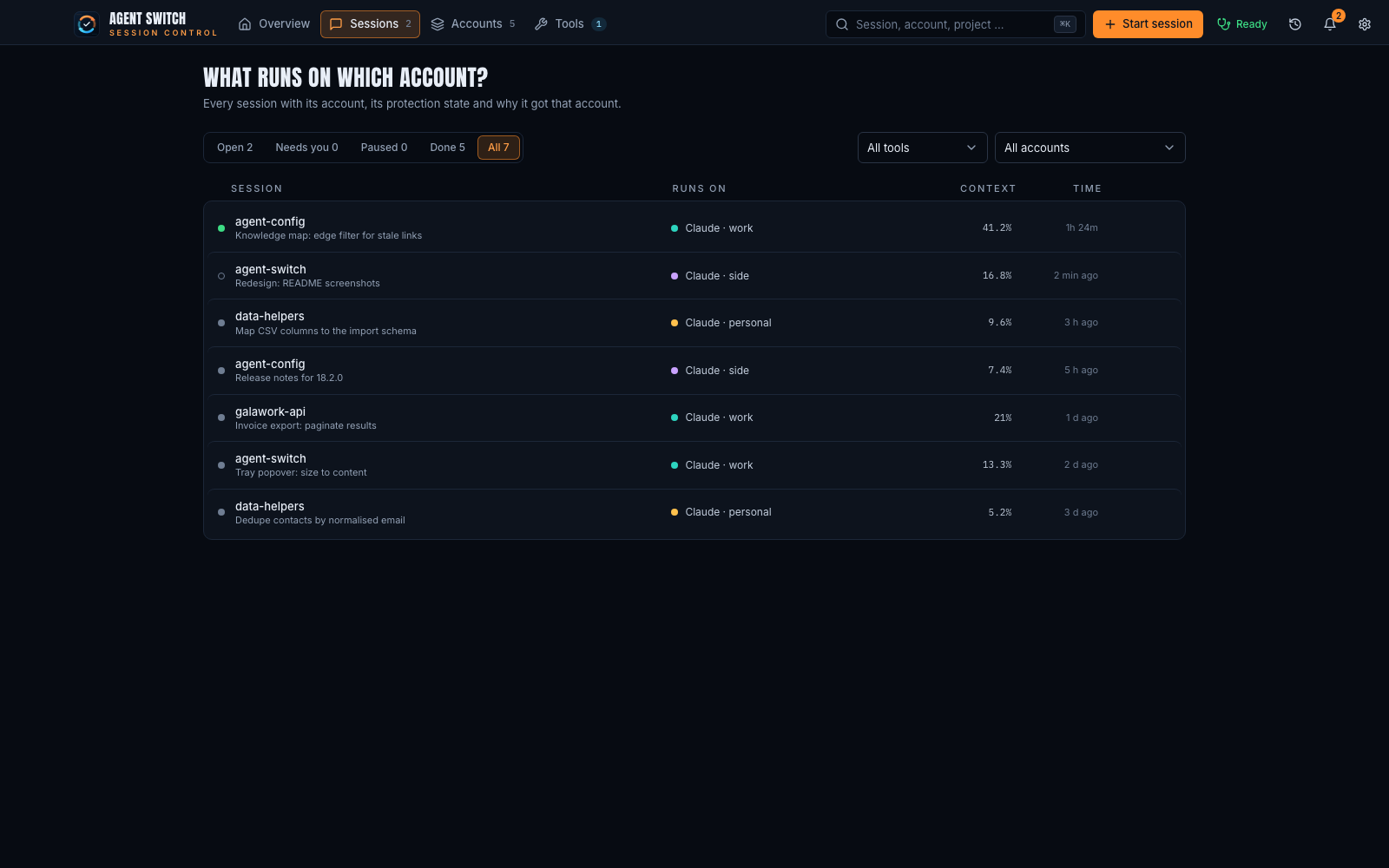
Section titled “Sessions”Every session with its account. Click one to open the session sheet: its folder, context fill, a preview of the first turns, why it got this account, and Move to another account.
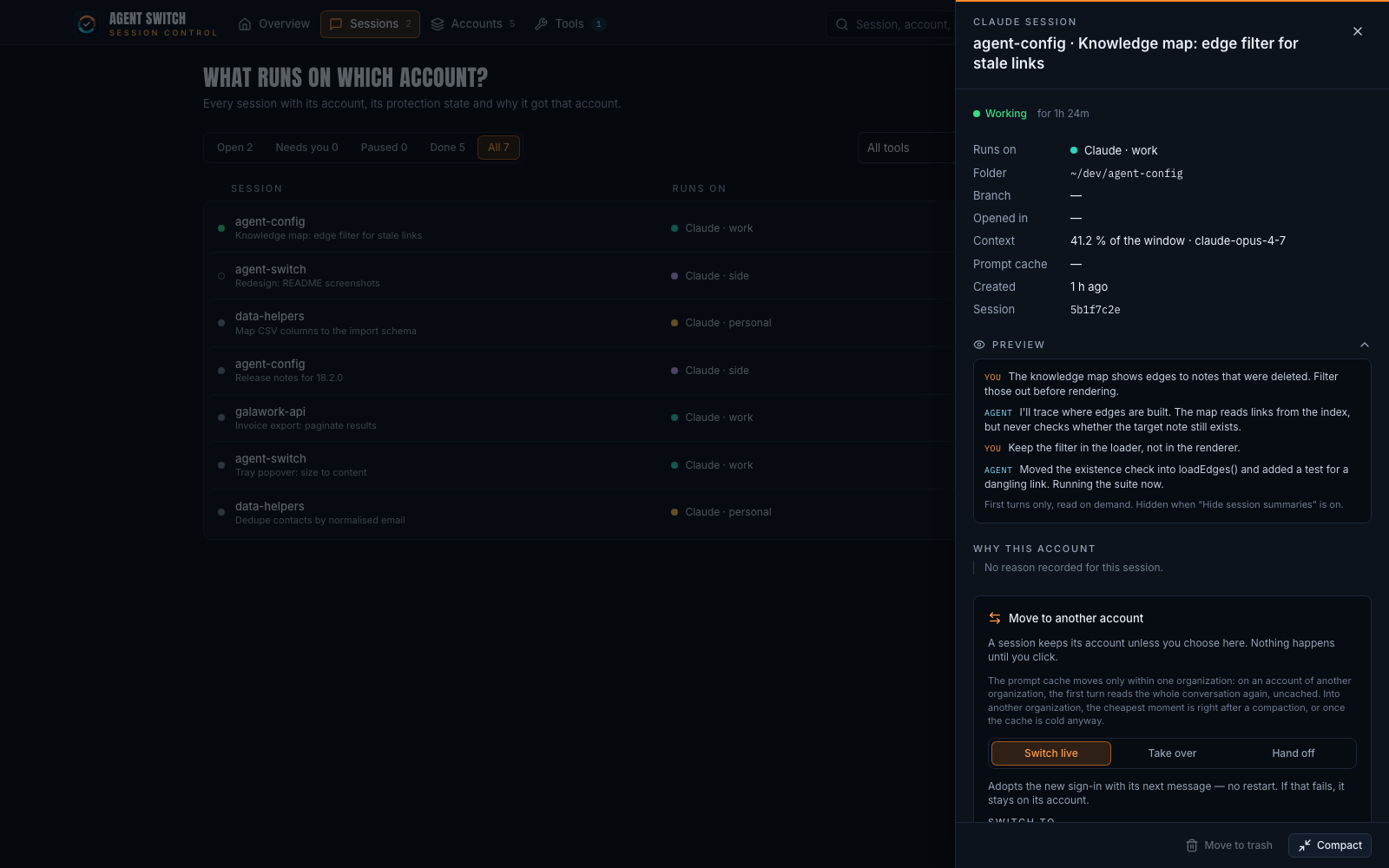
The three ways to move match the CLI: Switch live is rebind, Take
over is takeover, Hand off is handoff. Nothing moves until you
choose. See Move a session.
Accounts
Section titled “Accounts”Each account with its sign-in, where it is used, its 5-hour and weekly meters, and the limit protection threshold. The Plain claude starts on line says which account a start without a folder pin would use right now.
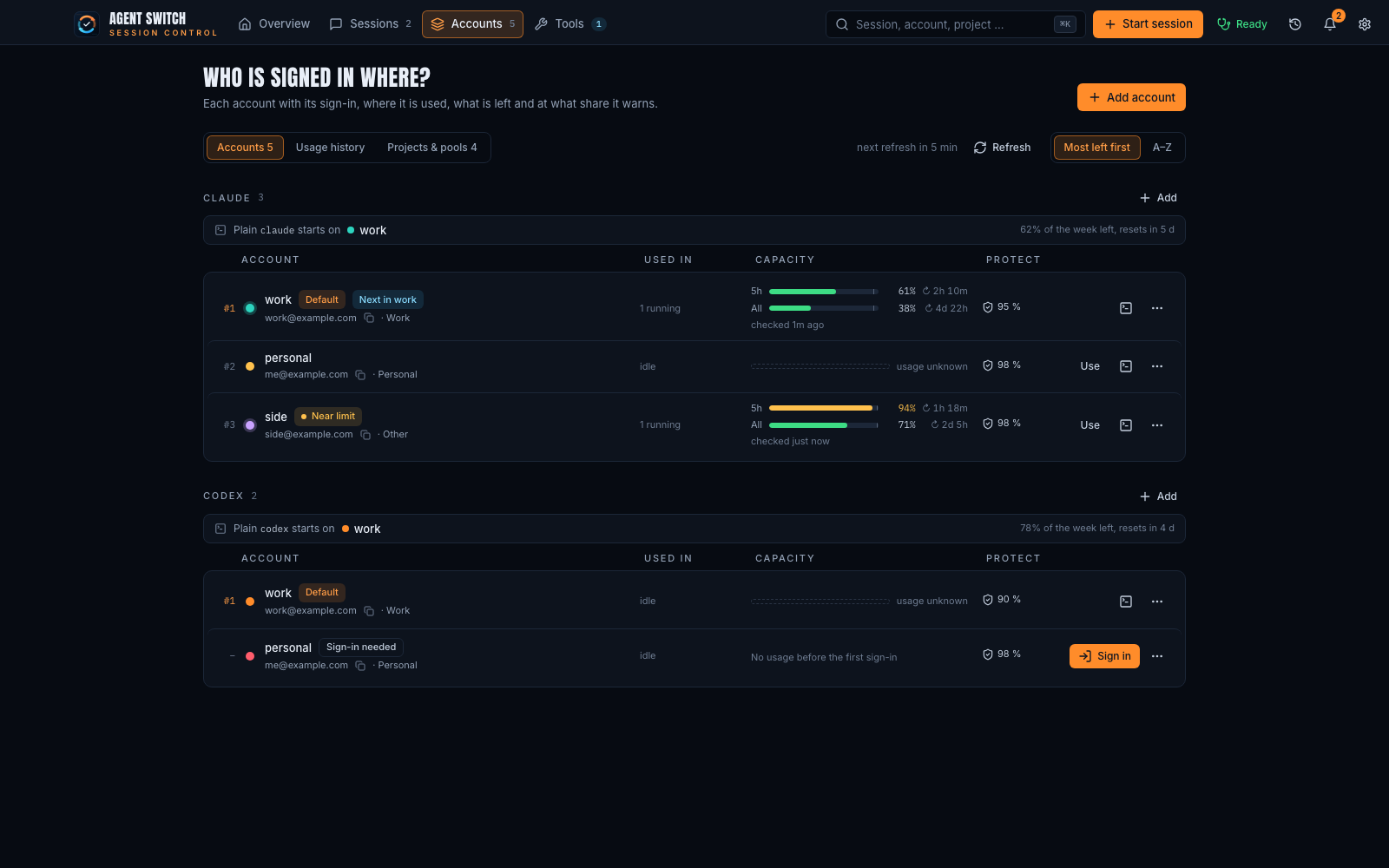
Two more tabs: Usage history shows each account’s usage over time, and Projects
& pools manages folder pins and pools, the same as map and pool in the
CLI. See Projects and pools.
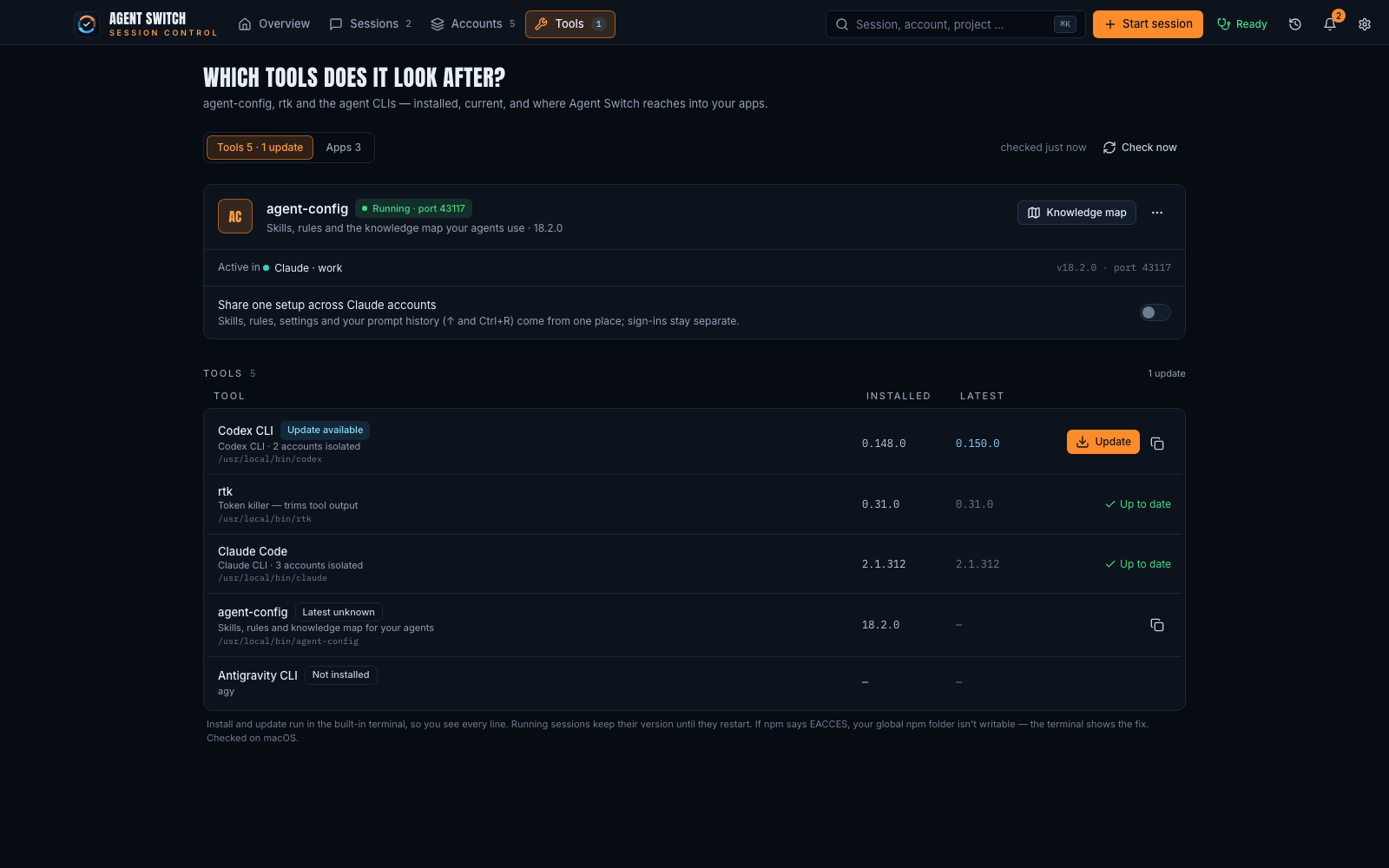
The agent CLIs (Claude Code, Codex, Antigravity) and the companion tools agent-config and rtk: installed version, newest version, and an install or update button. The Apps tab manages desktop apps per account on macOS.
Health, Activity, Notifications
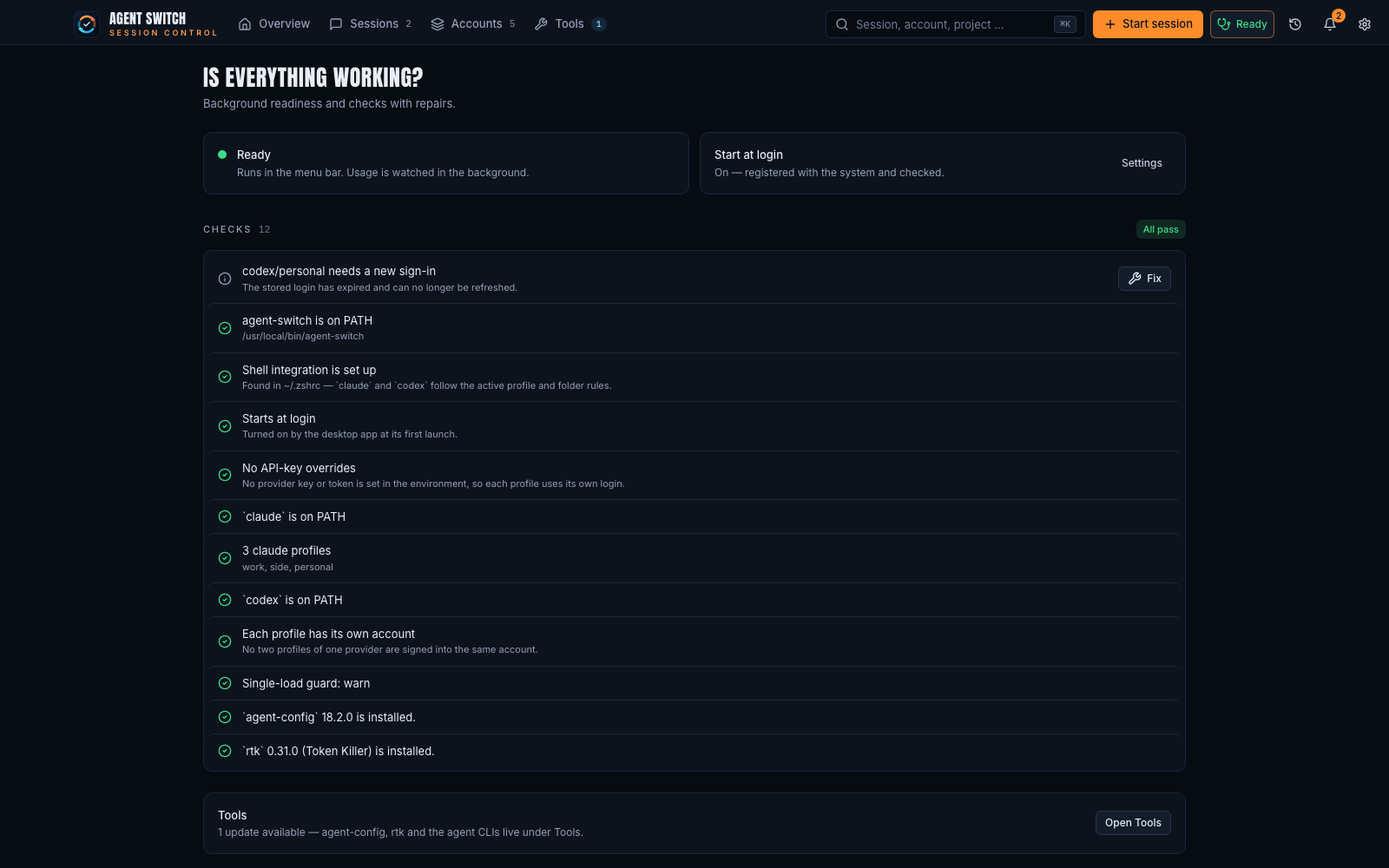
Section titled “Health, Activity, Notifications”- Health: whether the app is ready, whether it starts at login, and a list of checks (PATH, shell integration, sign-ins), with a Fix button where Agent Switch can repair it itself.
- Activity: what Agent Switch did and why: switches, sign-ins, resets,
pools, updates. The CLI equivalent is
agent-switch activity. - Notifications: the bell lists recent notices. See Notifications and the desktop pet.
Start a session from the app
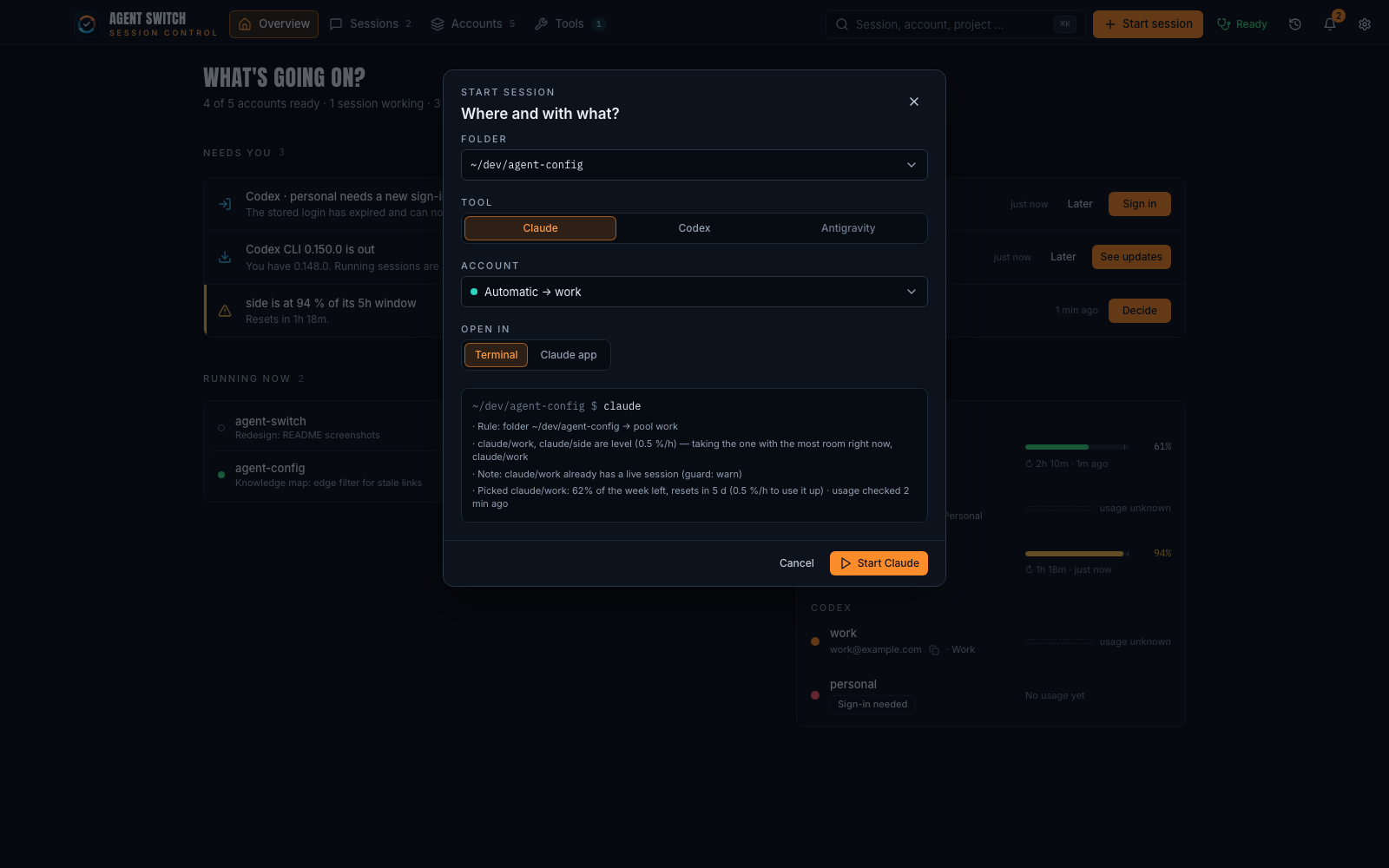
Section titled “Start a session from the app”Start session asks for a folder, a tool and an account, and shows the
decision before anything starts. Automatic uses the same rules as claude
in a terminal, and the box below lists the reasons.
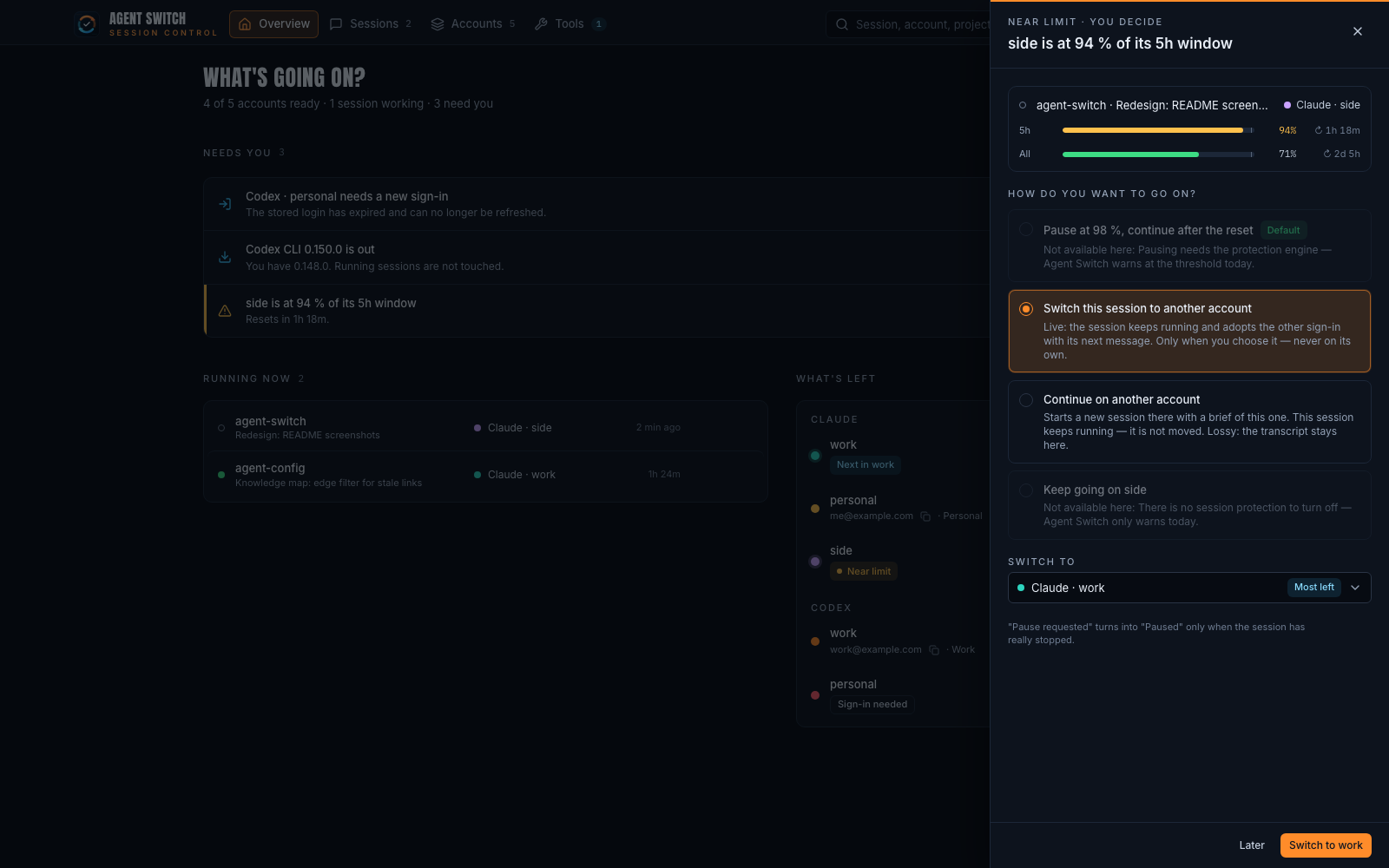
When an account nears its limit
Section titled “When an account nears its limit”A near-limit item opens a sheet that asks how you want to go on. It suggests the account with the most left. Nothing happens until you click.
The menu-bar popover
Section titled “The menu-bar popover”A left click on the menu-bar icon opens the popover: the items that need you, every account’s meters, and Start session. On macOS, each signed-in account whose tool has a desktop app gets a button that opens that app as this account. A right click shows the classic menu with Show agent-switch and Quit.
Quitting always asks first, from the popover’s power button, the menu’s Quit and Settings › General › Quit alike: the main window opens with a confirmation, and agent-switch only quits when you confirm. Restarting after an update does not ask.
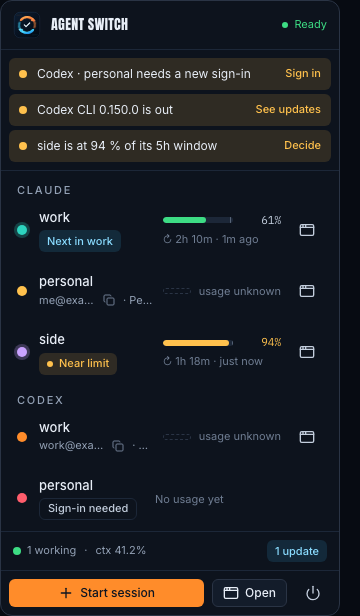
Disabled accounts are hidden from the popover. To show them, turn on Settings › General › Show disabled accounts in the menu bar.
The built-in terminal
Section titled “The built-in terminal”Adding an account, signing one in again, and installing or updating a tool run in a terminal inside the app. You see every line, and no separate terminal window opens.
Settings
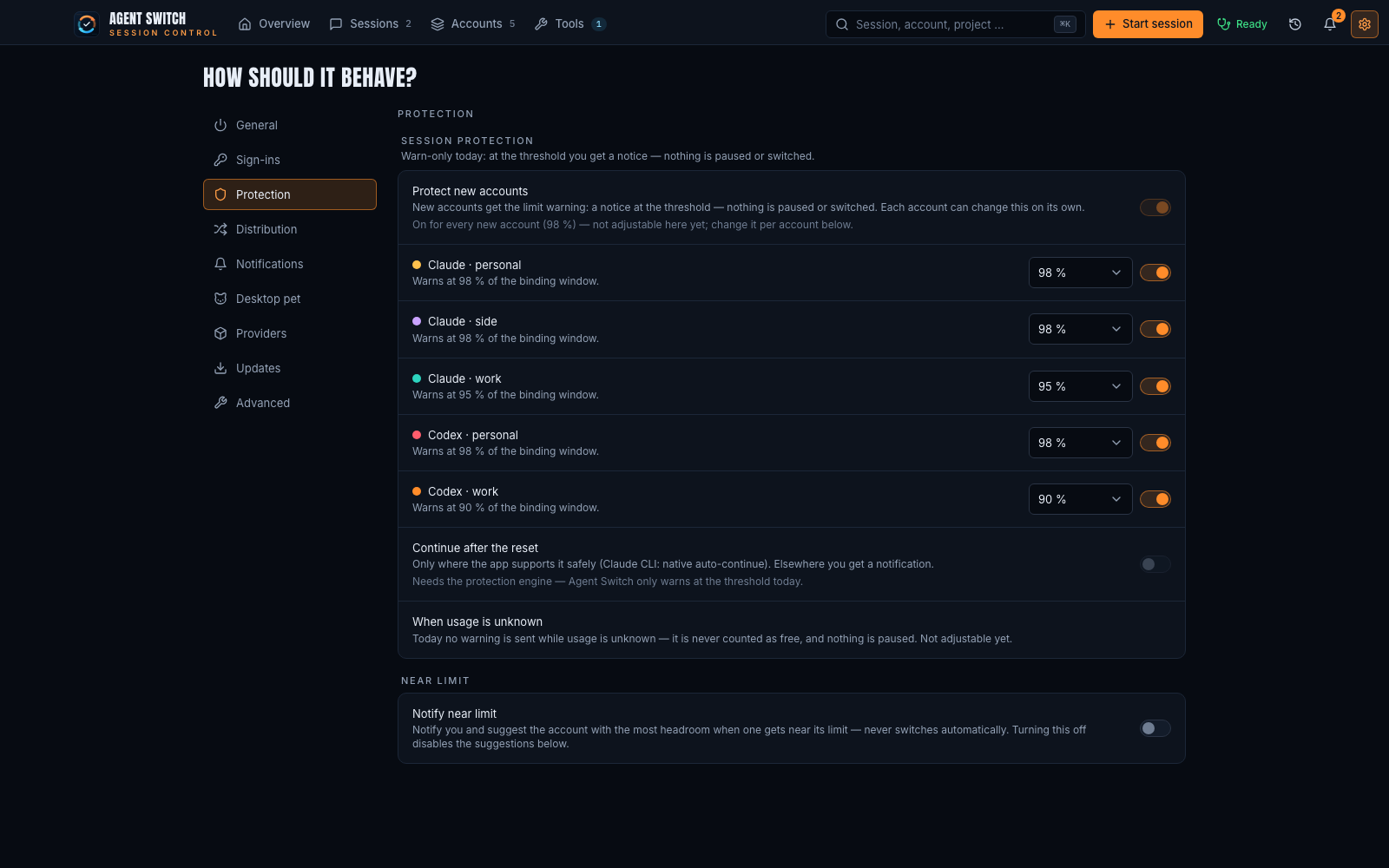
Section titled “Settings”| Section | What you set there |
|---|---|
| General | Start at login, appearance, language, how often usage refreshes, hiding session previews |
| Sign-ins | Keep Claude accounts signed in (needs the background service) |
| Protection | Limit protection per account, and limit suggestions (off by default) |
| Distribution | Projects and pools, and creating pools from your tags |
| Notifications | Desktop notifications, Claude session monitoring, context alerts |
| Desktop pet | The optional companion; see the pet |
| Providers | Turn Claude, Codex or Antigravity on or off, or link a binary that is not on your PATH |
| Updates | Check now, automatic updates |
| Advanced | One account in two places (warn or block), uninstall |
Start at login
Section titled “Start at login”On its first run, the app registers itself to start at login and checks that the system accepted it. Each start re-registers the version that is running, so login opens the app you updated to. Turn it off in Settings › General › Start at login. Health shows whether it is on.
Language
Section titled “Language”The app speaks English and German. It follows your system unless you pick one in Settings › General › Language.
Updates
Section titled “Updates”The app checks for a new Agent Switch release when it opens and every 24
hours. For the release types you select under Settings › Updates (major,
minor and bugfix by default), it installs the update itself with
agent-switch update and asks you to restart. For any other type it only
tells you. Check now checks right away.